Azure Onboarding Process (script)
Connect Azure EA, MCA, or CSP partner billing accounts using the org-level Cloud Shell script and a client-secret wiv_account service principal, with a billing-export-only mode for CSP / MSP partners.
Written By Dotan Cohen
Last updated 27 days ago
Connect Azure to Wiv using the Cloud Shell script. The script configures org-level billing access for Enterprise Agreement (EA), Microsoft Customer Agreement (MCA), and CSP partner billing accounts. Cost data is exported as daily FOCUS Parquet files to Blob storage.
The script asks how far the permissions should reach. Full onboarding grants read roles on every subscription billed through the account. CSP / MSP partners can choose billing export only, which skips the per-subscription permissions a partner login cannot grant in customer tenants. A POC option limits those roles to subscriptions you pick. See CSP and MSP partner mode (billing export only) below.
Note: Prefer no client secret? Use Azure Onboarding Process (in-app wizard) or Generate Integration Link in Wiv.
Warning: This path requires a billing account visible to your login (EA, MCA, or CSP partner). Customer tenants with no billing account cannot use this script. CSP partners should sign in to the partner tenant that owns the billing account and answer y to the billing export only prompt.
Architecture
Billing account (EA / MCA / CSP partner)
        │
        ▼
  FOCUS daily export (Parquet/Snappy)
        │
        ▼
  Storage account in rg-wiv (shared key disabled)
        │
        ▼
  Wiv reads blobs directly
Prerequisites
Billing agreement: EA (
EnterpriseAgreement), MCA (MicrosoftCustomerAgreement), or CSP partner (MicrosoftPartnerAgreement, or an MCA partner account). The script exits on any other agreement type.Register Cloud Shell for your subscription.
EA only: Enable Account owners can view charges under Cost Management + Billing → Policies.
Permissions
Sign in to Cloud Shell as a user who holds every role below:
Global Administrators must elevate access first (Microsoft Entra ID → Properties → Access management for Azure resources), then sign in again. If the Reservations Reader grant is denied, the script stops before any per-subscription roles or the export; elevate access, sign in again, and re-run — it reuses everything already created. Do not assign the role by hand. CSP / MSP partners who answer y to billing export only skip this grant entirely.
What the script does
The script performs these steps, in this order:
Verify tooling — checks for
az,curl, andpython3.Sign in — runs
az loginif needed and prints the signed-in user.Host subscription — lists subscriptions and asks which one hosts
rg-wivand the billing storage. This is not the cost scope.App registration and client secret — creates or reuses the
wiv_accountapp registration and service principal. Every run mints a new client secret (2-year expiry); earlier secrets stay valid, so existing integrations keep working.Billing account — lists billing accounts and asks you to paste the Name, then grants the billing role via the Billing REST API: Enrollment Reader for
EnterpriseAgreement, Billing account reader forMicrosoftCustomerAgreement/MicrosoftPartnerAgreement(CSP partner). Any other agreement type exits. If the automatic grant fails, the script prints manual steps and continues.Smoke test — after you press Enter, queries Cost Management at billing-account scope as the service principal and reports the row count or explains a 401 / 403 / 404 / 400 / 429.
Billing storage setup — reuses
rg-wiv(and its region) or asks for a region (defaultnortheurope) and creates it; registers theMicrosoft.StorageandMicrosoft.CostManagementExportsresource providers when missing.Cost Management Reader — assigns it to the app on the billing account and on the host subscription.
Permission scope — asks Billing export only (MSP)? (default y for
MicrosoftPartnerAgreement, n otherwise). y skips Reservations Reader, all per-subscription roles, and the management group — see CSP and MSP partner mode below. Otherwise it assigns Reservations Reader at/providers/Microsoft.Capacity(and stops if the grant is denied), then asks Apply ARM roles on selected subscription(s) only (POC)? — y grants Reader, Monitoring Reader, and Cost Management Reader only on the subscription IDs you enter; n grants them on every subscription billed through the account (billingSubscriptionsAPI), skipping subscriptions owned by other tenants or no longer resolvable with a per-tenant summary.FOCUS billing export — reuses an existing FOCUS export named
WivFocusDailyExport(or legacyDailyBillingExport) and its storage, upgrading it to Parquet + Snappy with month overwrite when needed; otherwise creates awivbill<suffix>storage account inrg-wiv, thebilling-exportscontainer, and a daily FOCUS 1.0 export at billing-account scope with a system-assigned managed identity, then queues a 12-month backfill plus an immediate month-to-date run. The export is created with your identity; if Azure denies it, the script names the billing role to add.Blob access — hardens the storage account (
allowSharedKeyAccess=false, no public blob access) and grants Storage Blob Data Reader to the service principal.Management group (optional, full mode only) — numbered list with 0) Skip as the default; assigns Reader and Monitoring Reader at the chosen group so subscriptions under it inherit access. When none are listed, offers to create one and move subscriptions into it. Skipped automatically in CSP / MSP and POC modes.
Microsoft Graph (optional) — grants
User.Read.AllandGroup.Read.Allwith admin consent if you answer y.Output — prints Tenant ID, App (Client) ID, SP Object ID, host subscription, billing account and cost scope, management group, an ARM roles: skipped line in CSP / MSP mode, the FOCUS export details, the client secret, and a ready-to-paste Wiv integration JSON.
Note: Cost is exported once at billing-account scope. The export includes only subscriptions billed through the billing account you select — if a subscription belongs to another billing account, grant your user access to that account and select it during onboarding.
CSP and MSP partner mode (billing export only)
Use this mode when you are a Cloud Solution Provider (CSP) or MSP partner onboarding a partner billing account. Customer subscriptions billed through a partner account live in the customers' Microsoft Entra tenants, so a login to the partner tenant cannot assign ARM roles on them. The billing account itself is in the partner tenant, so the FOCUS export — which covers every customer's cost — can still be created from there.
Sign in to Cloud Shell in the partner tenant that owns the billing account, run the script, and when it asks:
🏢 MSP / CSP partner mode (optional)
   Billing export only — skip subscription/ARM permissions (MSP)? (y/n) [y]:
answer y (or press Enter — y is the default when the billing account's agreement type is MicrosoftPartnerAgreement). If your partner billing account is listed as MicrosoftCustomerAgreement, the default is n, so type y explicitly. For EA and direct MCA accounts keep n.
What the skip keeps and what it skips:
The Microsoft Graph prompt is still asked. With this mode Wiv receives all customers' cost from the billing-account FOCUS export. It does not receive per-subscription inventory, Azure Monitor metrics, or reservation orders, because those APIs need roles inside each customer tenant. The script marks the choice in its final output:
📄 Management group:    (skipped: MSP billing-export-only)
📄 ARM roles:           skipped (MSP billing-export-only: no per-subscription roles, no Reservations Reader)
Note: To add inventory, metrics, or reservation visibility for a customer later, onboard that customer tenant separately — for example with Generate Integration Link from the Azure integrations page — or delegate the customer subscriptions to the partner tenant with Azure Lighthouse. Re-running this script in the partner tenant cannot grant those roles.
If you answer n on a partner account, the script runs the regular flow instead: it must be able to assign Reservations Reader in the partner tenant (otherwise it stops), asks the POC question, and in full mode probes every billed subscription and skips the ones owned by customer tenants automatically, printing a per-tenant summary such as:
ℹ️  Skipped subscriptions billed by this account but owned by other tenants.
    Their cost is still included in the billing-account FOCUS export. Granting ARM
    roles on them (inventory, metrics, reservations) needs a sign-in to that tenant
    or Azure Lighthouse delegation:
    - tenant <customer tenant id>: 12 subscription(s) — az login --tenant <customer tenant id>
POC: selected subscriptions only. When you answer n to billing export only, the script assigns Reservations Reader and then asks:
🧪 POC permissions (optional)
   Apply ARM roles on selected subscription(s) only (POC)? (y/n):
Answer y to run a proof of concept on a few subscriptions. The script lists the subscriptions visible to your login, asks for comma-separated subscription IDs (default: the host subscription), and grants Reader, Monitoring Reader, and Cost Management Reader only there. It skips the all-billed-subscriptions loop and the management group, and the final output shows Management group: (POC: selected subscriptions only). Reservations Reader is still assigned in POC mode. To expand later, re-run the script and answer n, or assign the three roles on each additional subscription by hand.
Run the script
Open Azure Cloud Shell and run:
curl -sO https://raw.githubusercontent.com/wiv-ai/AzureOnBoarding/main/.cloudshell/startup.sh && chmod +x startup.sh && ./startup.shPrompts appear in this order; some are shown only in certain modes. If automatic billing-role assignment fails, the script prints manual steps for EA (REST API) or MCA (Azure portal IAM) and continues. If Reservations Reader cannot be assigned (full and POC modes), the script stops — elevate access, sign in again, and re-run.
Wait for the first export
The first FOCUS export can take 5–30 minutes. In the Azure portal, open the billing account → Exports → WivFocusDailyExport → Run now, then confirm part_*.snappy.parquet files appear in storage.
The script is idempotent — safe to re-run. It reuses the app registration, rg-wiv, the storage account, and the export, and skips role assignments that already exist. Each run mints a new client secret; earlier secrets stay valid until they expire (2 years), so a re-run never breaks an existing integration.
Save the script output
Copy the Wiv integration secret JSON printed at the end of the script before closing Cloud Shell. It includes Tenant ID, App ID, SP Object ID, the client secret (a new secret is printed on every run — store it in your secret manager), billing account name, billing storage account and its resource ID, host subscription ID, and the export path defaults (billing-exports, billing-data, WivFocusDailyExport).
{
  "auth_method": "client_secret",
  "tenant_id": "<tenant>",
  "app_id": "<app id>",
  "client_secret": "<secret>",
  "sp_object_id": "<service principal object id>",
  "billing_account_name": "<billing account name>",
  "billing_query_backend": "blob",
  "billing_storage_account": "<storage account>",
  "billing_storage_resource_id": "/subscriptions/<host subscription id>/resourceGroups/rg-wiv/providers/Microsoft.Storage/storageAccounts/<storage account>",
  "billing_container": "billing-exports",
  "billing_root_folder": "billing-data",
  "billing_export_name": "WivFocusDailyExport",
  "subscription_id": "<host subscription id>"
}
The JSON is the same in CSP / MSP and POC modes — the modes change which ARM roles the app holds, not the export. If the FOCUS export was not deployed in this run, the script prints a shorter JSON without the storage and export fields and a note saying so; fix the cause (see Troubleshooting) and re-run before connecting in Wiv.
Connect in Wiv
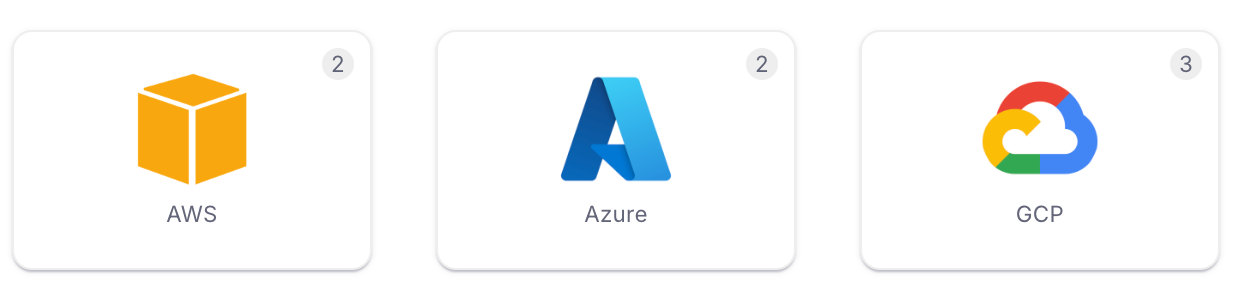
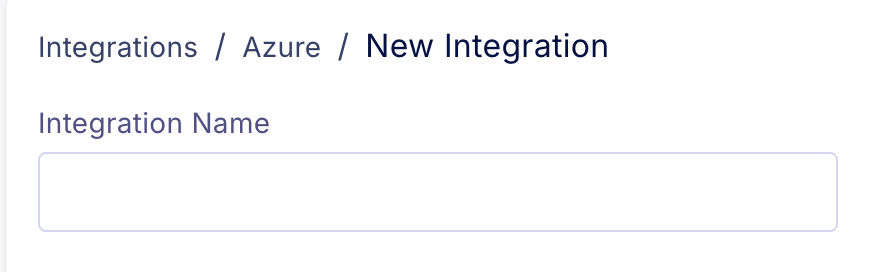
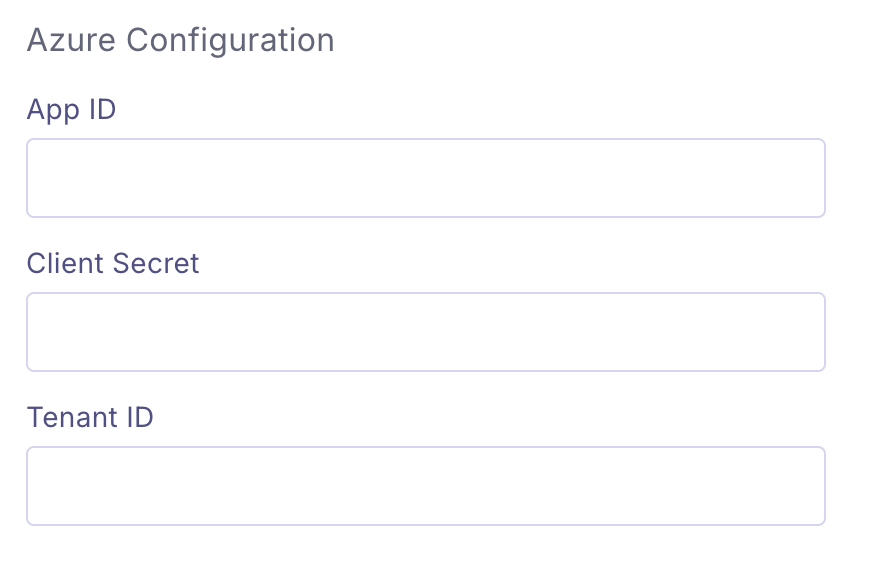
Sign in to Wiv → Integrations → Azure → New Azure Integration.
Enter values from the script output JSON: Tenant ID, App ID, Client Secret, Billing account name, Billing storage account, and host subscription ID (plus container / root / export name if you changed the defaults).
Click Save.

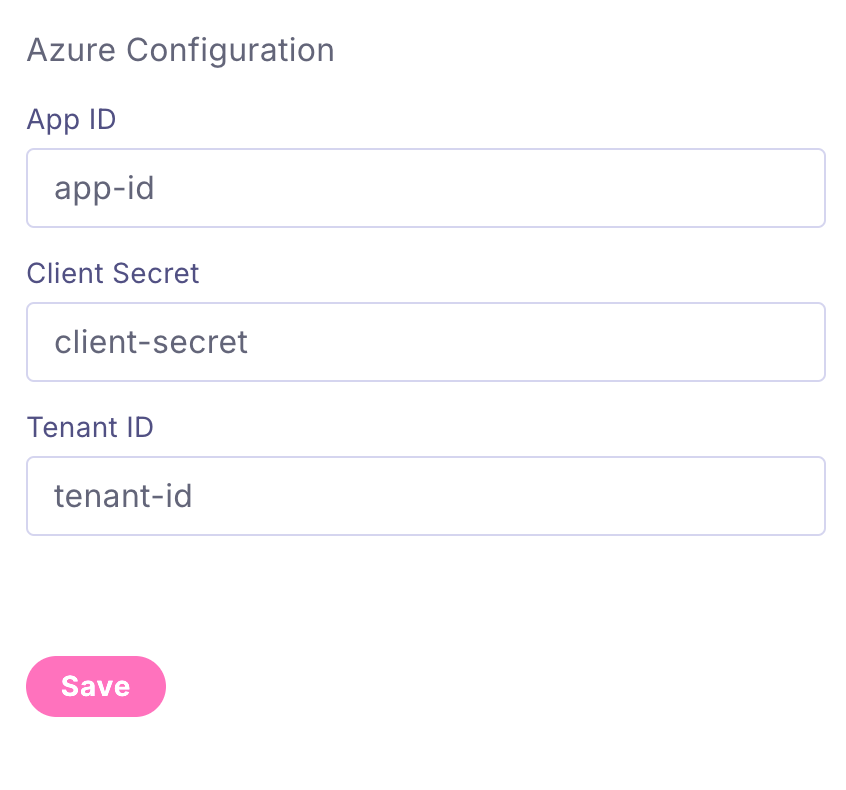
Note: The script prints a ready-to-paste Wiv integration JSON at the end (auth_method client_secret, billing_query_backend blob, including sp_object_id and billing_storage_resource_id) — see Save the script output above.
Adding Entra ID permissions (post deployment)
Entra ID → App registrations →
wiv_account.Open API permissions.
Under Microsoft Graph → Application permissions, confirm
User.Read.All+Group.Read.All, orDirectory.Read.All.Click Grant admin consent for your tenant and confirm green checkmarks in the Status column.
Troubleshooting
Was this helpful?
Still need help? Ask the team